Queue Cleaner
The Queue Cleaner monitors your *arr's queues and automatically removes downloads based on configurable criteria. This helps keep your queue clean and prevents problematic downloads from being stuck.
To avoid striking genuine downloads during an internet outage, enable the Internet Connectivity Check in General settings. When it fails, the Queue Cleaner skips its run so no strikes are accumulated.
Enable Queue Cleaner
When enabled, the Queue Cleaner will run according to the configured schedule to automatically clean downloads from your download client queue.
Scheduling Mode
Choose how to configure the Queue Cleaner schedule:
- Basic: Simple interval-based scheduling (every X minutes/hours/seconds)
- Advanced: Full cron expression control for complex schedules
Cron Expression
Enter a valid Quartz cron expression to control when the Queue Cleaner runs.
Common Cron Examples:
0 0/5 * ? * * *- Every 5 minutes0 0 * ? * * *- Every hour0 0 */6 ? * * *- Every 6 hours
Ignored Downloads
Downloads matching these patterns will be ignored by Queue Cleaner. Patterns can match any of these:
- torrent hash
- qBittorrent tag or category
- Deluge label
- Transmission category (last directory from the save location)
- µTorrent label
- rtorrent label
- torrent tracker domain
- download client name as configured in your *arrs
Examples:
fa800a7d7c443a2c3561d1f8f393c089036dade1
tv-sonarr
qbit-tag
mytracker.com
myDownloadClient
Process downloads with no content ID
When enabled, downloads that are not linked to any content in the *arr app will be processed normally. If such a download is removed, Cleanuparr will not be able to trigger a search for a replacement, since the content ID is unknown.
This setting will enable the processing of items that appear in the logs with the following message:
skip | item is missing the content id
Failed Import Settings
Max Strikes
Number of strikes before a failed import download is removed from the queue. Set to 0 to disable failed import cleaning, minimum 3 to enable.
Ignore Private
When enabled, private torrents will be skipped during failed import cleaning. This is useful if you want to preserve private tracker content even when imports fail.
This setting needs a download client to be configured.
Change Category
When enabled, instead of deleting the item from the download client, Cleanuparr asks the *arr to change the download's category to the post-import category.
The post-import category is configured per download client in your *arr application's settings, not in Cleanuparr. Cleanuparr only signals the *arr to perform the category change.
Delete Private
When enabled, private torrents that reach the maximum strikes will be deleted from the download client. Use with caution as this will permanently remove the download.
Setting this to true means private torrents will be permanently deleted, potentially affecting your private tracker account by receiving H&R if the seeding requirements are not met.
This setting needs a download client to be configured.
Skip If Not Found In Client
When enabled, torrents that are not found in any enabled torrent client will skip the failed import check. This is useful when the connection between Cleanuparr and your download client is temporarily broken or when the download client is down, preventing accidental removal of private torrents when their privacy status cannot be determined.
This setting needs a download client to be configured.
Pattern Mode
Choose how to handle failed imports based on their patterns:
- Exclude: Remove all failed imports except those containing specified patterns.
- Include: Remove only failed imports containing specified patterns.
Patterns
Examples:
title mismatchmanual import requiredrecently aired
When pattern mode is set to Exclude, failed imports containing these patterns will be skipped. Everything else will be removed.
When pattern mode is set to Include, only failed imports containing these patterns will be removed. Everything else will be skipped.
These patterns can be any substring of the failed import messages. These messsages can be viewed in the queue of your *arr application.
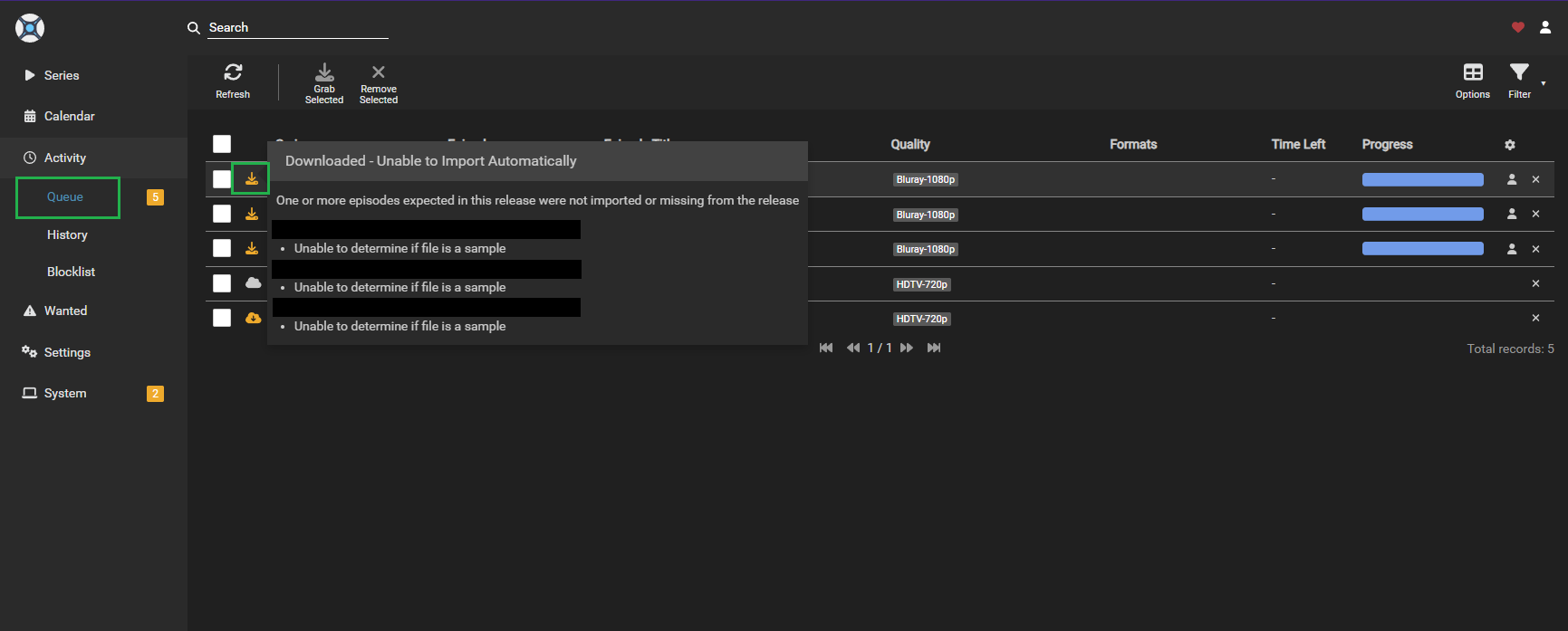
Patterns are matched as plain, case-insensitive substrings. No regex, no wildcards.
Some messages contain values that are filled in at runtime: file paths, quality names, episode numbers, dates. In the lists below these are shown as placeholders such as {0} or {1}. Never include a placeholder in a pattern, because the actual message contains the real value instead and the pattern will never match. Use only the fixed part of the message, for example was not found in the grabbed release instead of Episode {0} was not found in the grabbed release: {1}.
Sonarr and Radarr do not publish a list of these messages, so the lists below were collected from their source code. They are not guaranteed to be exhaustive and may change between *arr releases, so always confirm against the messages shown in your own queue.
Known Sonarr messages
Whole download (from CompletedDownloadService.cs):
Series title mismatch; automatic import is not possible. Check the download troubleshooting entry on the wiki for common causes.Found matching series via grab history, but release was matched to series by ID. Automatic import is not possible. See the FAQ for details.Unable to parse download, automatic import is not possible.No files found are eligible for import in {0}One or more episodes expected in this release were not imported or missing from the releaseDownload wasn't grabbed by Sonarr and not in a category, Skipping.Download doesn't contain intermediate path, Skipping.[{0}] is not a valid local path. You may need a Remote Path Mapping. Check the download troubleshooting entry on the wiki for details.
Individual files (from ImportDecisionMaker.cs and the import specifications):
Invalid season or episodePartial season packs are not supportedExtras are not supportedUnable to parse fileUnexpected error processing fileEpisode {0} was unexpected considering the {1} folder nameEpisodes {0} were unexpected considering the {1} folder nameEpisode {0} was not found in the grabbed release: {1}Episodes {0} were not found in the grabbed release: {1}SampleUnable to determine if file is a sampleFile is still being unpackedNot an upgrade for existing episode file(s). Existing quality: {0}. New Quality {1}.Not a quality revision upgrade for existing episode file(s)Not a Custom Format upgrade for existing episode file(s). New: [{0}] ({1}) do not improve on Existing: [{2}] ({3})Not enough free spaceNo audio tracks detectedEpisode file already imported at {0}Single episode file contains all episodes in seasons. Review file name or manually importSingle episode split into multiple filesEpisode file on disk contains more episodes than this file containsEpisode does not have a title and recently airedEpisode has a TBA title and recently airedEpisode does not have an absolute episode number and recently airedThis show has individual episode mappings on TheXEM but the mapping for this episode has not been confirmed yet by their administrators. TheXEM needs manual input.
Known Radarr messages
Whole download (from CompletedDownloadService.cs):
Movie title mismatch, automatic import is not possible. Manual Import required.Found matching movie via grab history, but release was matched to movie by ID. Manual Import required.Unable to parse download, automatic import is not possible.No files found are eligible for import in {0}One or more movies expected in this release were not imported or missingDownload wasn't grabbed by Radarr and not in a category, Skipping.Download doesn't contain intermediate path, Skipping.[{0}] is not a valid local path. You may need a Remote Path Mapping.
Individual files (from ImportDecisionMaker.cs and the import specifications):
Invalid movieUnable to parse fileUnexpected error processing fileMovie {0} was not found in the grabbed release: {1}Not an upgrade for existing movie file. Existing quality: {0}. New Quality {1}.Not a quality revision upgrade for existing movie file(s)Not a Custom Format upgrade for existing movie file(s). New: [{0}] ({1}) do not improve on Existing: [{2}] ({3})SampleUnable to determine if file is a sampleFile is still being unpackedFile is suspected multi-part file, Radarr doesn't support thisNot enough free spaceNo audio tracks detectedMovie file already imported at {0}
Choosing patterns for each mode
Wording differs between Sonarr and Radarr, so prefer substrings that match both applications.
Failures that a new release can fix, useful with the Include mode:
title mismatchnot found in the grabbed releasewas unexpected consideringNo files found are eligible for importnot imported or missingUnable to parse
Failures that a new release will not fix, because they are temporary or caused by your setup, useful with the Exclude mode:
still being unpackedNot enough free spacerecently airedTBA titlealready importedNot an upgradeNot a Custom Format upgradeSampleTheXEMis not a valid local path
Stalled Download Rules
Stalled downloads are those that have stopped downloading and show no progress. You can create multiple rules to handle different scenarios based on completion percentage and torrent privacy.
These settings need a download client to be configured.
Rule Name
A descriptive name for this stall rule. This helps you identify the purpose of each rule when managing multiple rules.
Enabled
Toggle to enable or disable this rule. Disabled rules won't be applied during queue cleaning.
Max Strikes
Number of consecutive times a download must be stalled before action is taken. Minimum value is 3.
Privacy Type
Determines which torrents this rule applies to:
- Public Torrents Only: Rule only applies to public torrents
- Private Torrents Only: Rule only applies to private torrents
- Public and Private Torrents: Rule applies to all torrents
Completion Percentage Range
Define the completion percentage range where this rule applies:
- Min Completion Percentage: Rule applies once completion exceeds this value. A value of 0 includes torrents at exactly 0% and above.
- Max Completion Percentage: Rule applies up to and including this completion percentage.
This allows you to create different rules for different stages of a download. For example, you might be more aggressive with stalled downloads that are only 10% complete versus those that are 90% complete.
Reset Strikes on Progress
When enabled, the strike count resets to zero if the download shows progress again. This prevents removal of downloads that temporarily stall but resume downloading.
Minimum Progress to Reset
Only reset strikes after the torrent downloads at least this amount of data. Leave blank to reset on any progress. This prevents strikes from being reset by minimal progress that doesn't actually indicate the download is healthy.
Change Category
When enabled, instead of deleting the item from the download client, Cleanuparr asks the *arr to change the torrent's category to the post-import category.
The post-import category is configured per download client in your *arr application's settings, not in Cleanuparr. Cleanuparr only signals the *arr to perform the category change.
Delete Private from Client
When enabled, private torrents that reach the maximum strikes will be deleted from the download client. When disabled, they'll only be removed from the *arr queue but remain in your download client.
Setting this to true means private torrents will be permanently deleted, potentially affecting your private tracker account by receiving H&R if the seeding requirements are not met.
Downloading Metadata Max Strikes
Number of strikes before a download stuck in "Downloading Metadata" state is removed (qBittorrent only). This is separate from the rule system and applies globally.
Slow Download Rules
Slow downloads are those downloading below a specified speed threshold. You can create multiple rules to handle different scenarios based on speed, time limits, file size, completion percentage, and torrent privacy.
These settings need a download client to be configured.
Rule Name
A descriptive name for this slow rule. This helps you identify the purpose of each rule when managing multiple rules.
Enabled
Toggle to enable or disable this rule. Disabled rules won't be applied during queue cleaning.
Max Strikes
Number of consecutive times a download must be slow before action is taken. Minimum value is 3.
Min Speed
Minimum download speed threshold (e.g., 100KB/s). Downloads consistently below this speed will accumulate strikes. Either minimum speed or maximum time must be specified.
Maximum Time (Hours)
Maximum time allowed for downloads in hours. Set to 0 to disable time-based checking. When enabled, downloads that exceed this time limit will accumulate strikes regardless of speed. Either minimum speed or maximum time must be specified.
Privacy Type
Determines which torrents this rule applies to:
- Public Torrents Only: Rule only applies to public torrents
- Private Torrents Only: Rule only applies to private torrents
- Public and Private Torrents: Rule applies to all torrents
Completion Percentage Range
Define the completion percentage range where this rule applies:
- Min Completion %: Rule applies once completion exceeds this value. A value of 0 includes torrents at exactly 0% and above.
- Max Completion %: Rule applies up to and including this completion percentage.
This allows you to create different rules for different stages of a download. For example, you might tolerate slower speeds early in a download but expect faster speeds once it's mostly complete.
Ignore Above Size
Downloads larger than this size will be ignored by this rule (e.g., 25 GB). Large files often download slower and may need more time to complete, so you might want to exclude them from aggressive slow download rules.
Reset Strikes on Progress
When enabled, the strike count resets to zero if the download speed improves above the minimum threshold. This prevents removal of downloads that temporarily slow down but recover.
Ignore While Alternate Speed Active
When enabled, this rule is skipped while the download client's alternate speed limits are active, so intentional bandwidth throttling does not accumulate slow strikes. Both the minimum speed and maximum time checks are suppressed while alternate speed limits are on. This option is enabled by default.
Only supported for qBittorrent and Transmission. It has no effect for Deluge, rTorrent, and uTorrent, which do not expose an alternate speed mode.
Change Category
When enabled, instead of deleting the item from the download client, Cleanuparr asks the *arr to change the torrent's category to the post-import category.
The post-import category is configured per download client in your *arr application's settings, not in Cleanuparr. Cleanuparr only signals the *arr to perform the category change.
Delete Private from Client
When enabled, private torrents that reach the maximum strikes will be deleted from the download client. When disabled, they'll only be removed from the *arr queue but remain in your download client.
Setting this to true means private torrents will be permanently deleted, potentially affecting your private tracker account by receiving H&R if the seeding requirements are not met.